
Step 1
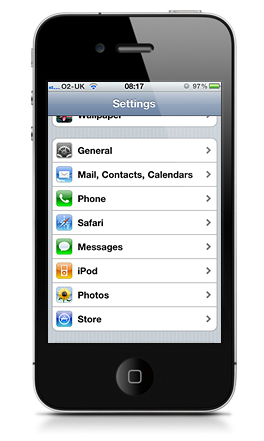
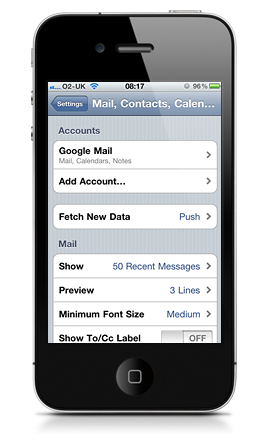
Okay let’s get started by going to Settings > Email, Contacts, Calenders.
Step 2
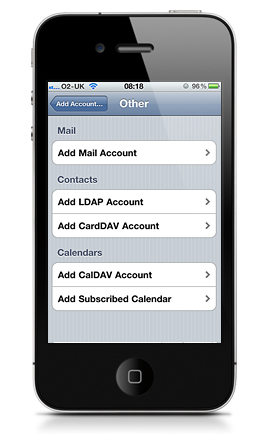
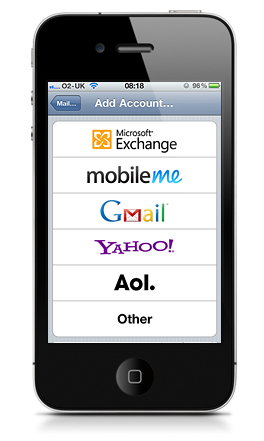
Add mail account > Other.
Step 3
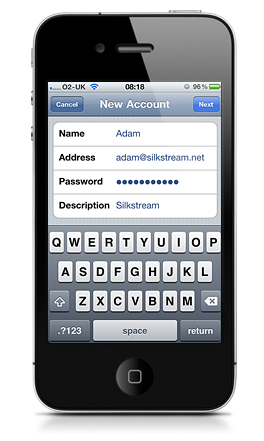
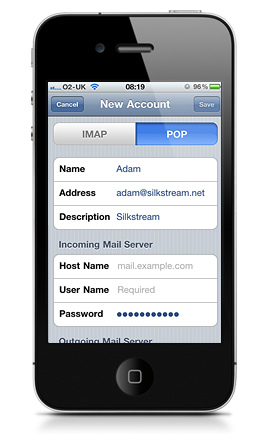
Type in your account details, Name, Email address, Password (if you are unsure of this it can be reset via the control panel or by contacting us directly – We do not keep any email password’s on file) and description.
Step 4 – Incoming Mail server details
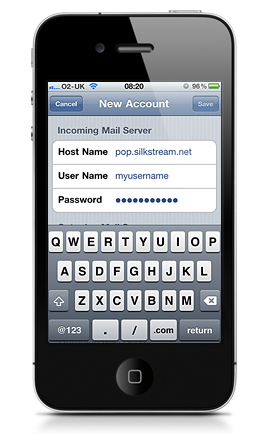
Enter pop.silkstream.net for your incoming mail server. Enter your username and password. If you are unsure please contact us directly.
Step 5 – Outgoing Mail server details
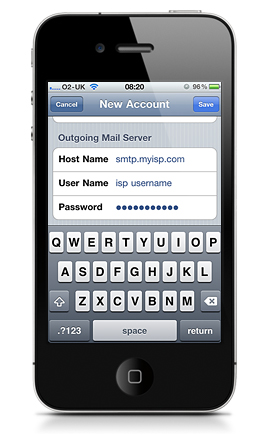
We do not provide an outgoing mail server this will be supplied via your Internet service provider.
Your ISP will provide an outgoing mail server please contact them directly for this information.
Once you have entered these details tap save and your iPhone will then verify your account information
If all details were entered correctly your account will now be setup.
